
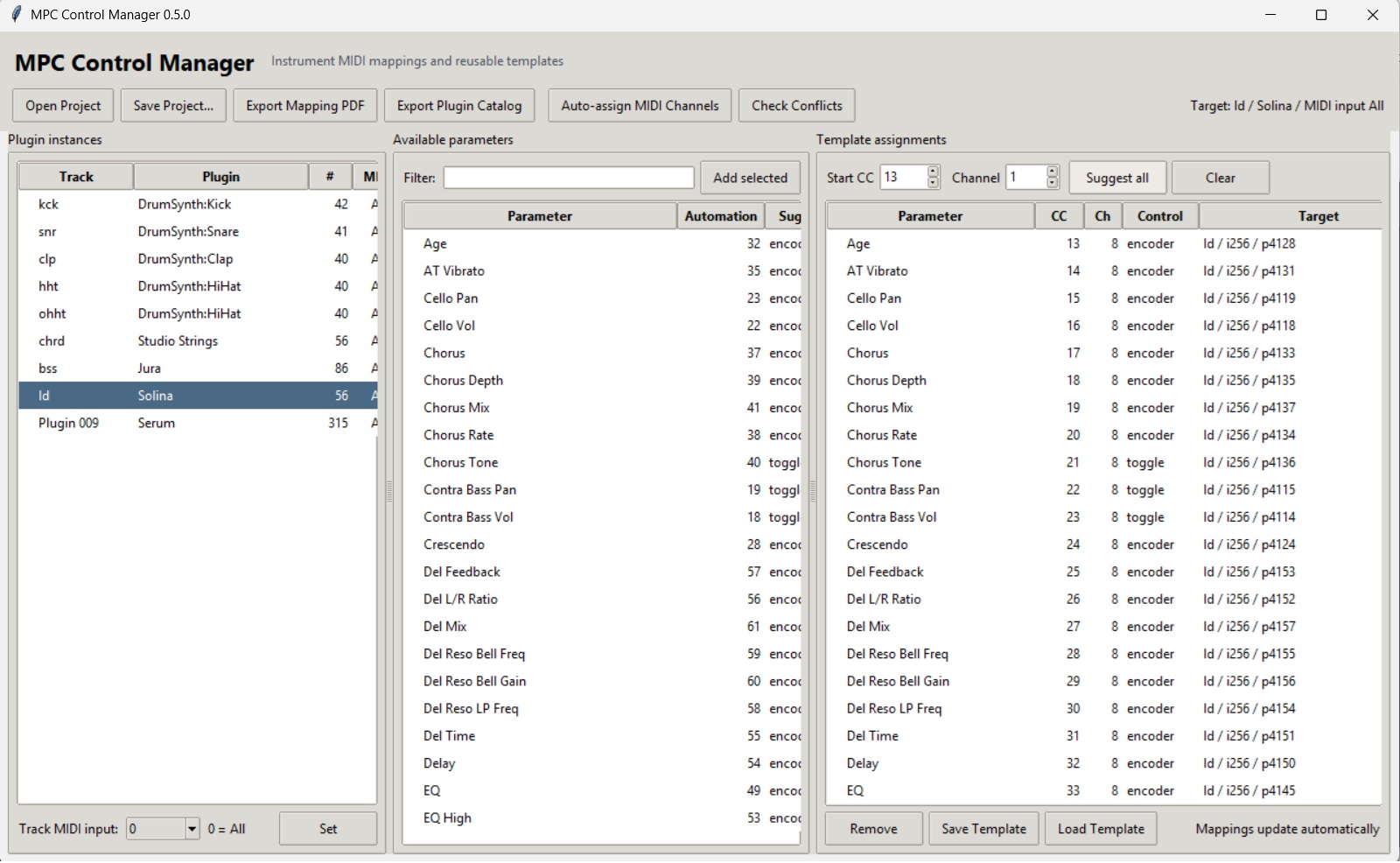

(tested with AKAI MPC LIVE 3, MPC 3.9 Desktop Software)
Why was MPC Control Manager created?
The Akai MPC platform offers powerful internal synthesizers such as Jura, Mini D, TubeSynth, Hype, OPx-4, Fabric, Keygroup Synth and many more.
While these instruments provide hundreds of parameters, controlling them with an external MIDI controller can quickly become frustrating.
Every new project requires new MIDI Learn assignments.
The same MIDI controller often has to be mapped over and over again.
If multiple plugins use the same MIDI CC numbers, they all respond simultaneously.
Managing larger projects with several synthesizers becomes increasingly difficult.
MPC Control Manager was created to solve exactly this problem.
What does MPC Control Manager do?
MPC Control Manager automatically edits MPC project files (*.xpj) and creates MIDI Learn assignments for your favorite hardware controllers.
Instead of spending time assigning every parameter manually, you can simply:
- Open your MPC project
- Select a plugin
- Choose a controller template
- Save the project
- Continue making music
Features
✓ Reads MPC project files
✓ Detects all supported MPC synthesizers
✓ Reads existing MIDI Learn assignments
✓ Assigns MIDI channels automatically
✓ Creates complete MIDI Learn layouts
✓ Saves your own controller templates
✓ Exports printable PDF controller maps
✓ Supports project copies including the complete ProjectData folder
Why MIDI Channels?
Using the same MIDI CC numbers for multiple plugins causes all synthesizers to react simultaneously.
MPC Control Manager avoids this by assigning every plugin its own MIDI channel.
Example:
| Plugin | MIDI Channel |
|---|---|
| Jura | 1 |
| Mini D | 2 |
| TubeSynth | 3 |
| Hype | 4 |
Now your controller can use exactly the same CC layout for every synthesizer.
Simply change the MIDI channel on your controller.
Workflow
1 Open a Project
Open your existing MPC project.
The software automatically detects
- Instruments
- Keygroup Synths
- Drum Synths
- Existing MIDI Learn assignments
2 Select a Plugin
Choose the synthesizer you would like to control.
Example:
Jura
3 Select MIDI Channel
Assign a dedicated MIDI channel.
Recommended:
Jura → Channel 1
Mini D → Channel 2
TubeSynth → Channel 3
4 Create Mapping
Select the parameters you want.
Typical Jura example:
Cutoff
Resonance
Drive
Attack
Decay
Sustain
Release
LFO Rate
Delay Mix
etc.
5 Save Template
Save your favorite controller layout.
Example:
Jura Live
Jura Sound Design
Mini D Bass
TubeSynth Pads
6 Save Project
Choose one of two options:
Overwrite
Updates the existing project.
Save Copy (Recommended)
Creates
MySong_Controller.xpj
and automatically copies
MySong_[ProjectData]
to
MySong_Controller_[ProjectData]
No original files are modified.
Export Mapping PDF
The PDF export creates a printable documentation of your controller assignments.
It contains
Project name
Plugin name
Track
MIDI Channel
CC Number
Parameter
Controller Type
Conflict warnings
Perfect for studio work or live performances.
Supported Plugins
Current support includes
Bassline
Jura
Mini D
TubeSynth
Hype
Fabric
Fabric XL
Fabric Electric Piano
Fabric Piano
Iona
OPx-4
Mellotron
Odyssey
Solina
Keygroup Synth
Drum Synth
Additional plugins will be added in future updates.
Controller Templates
Templates allow you to reuse your favorite layouts across unlimited MPC projects.
Instead of assigning hundreds of parameters manually, simply load your saved template.
Safety
MPC Control Manager never changes your original project unless you explicitly choose Overwrite.
The recommended workflow is always
Create Project Copy
This also duplicates the complete ProjectData folder.
Future Features
Planned features include
• LaunchControl XL graphical editor
• Drag & Drop parameter assignment
• Multiple controller support
• Parameter search
• Controller profiles
• Q-Link helper
• More MPC plugins
• Automatic plugin recognition
• Community template library
License
MPC Control Manager is provided completely free of charge.
If you enjoy using the software and would like to support further development, please consider making a donation.
Disclaimer
MPC Control Manager is an independent community project.
It is not affiliated with or endorsed by Akai Professional or inMusic.
All product names are trademarks of their respective owners.
User Guide
Version 1.0
Introduction
Why was MPC Control Manager created?
The Akai MPC platform offers powerful internal synthesizers such as Jura, Mini D, TubeSynth, Hype, OPx-4, Fabric, Keygroup Synth and many more.
While these instruments provide hundreds of parameters, controlling them with an external MIDI controller can quickly become frustrating.
Every new project requires new MIDI Learn assignments.
The same MIDI controller often has to be mapped over and over again.
If multiple plugins use the same MIDI CC numbers, they all respond simultaneously.
Managing larger projects with several synthesizers becomes increasingly difficult.
MPC Control Manager was created to solve exactly this problem.
What does MPC Control Manager do?
MPC Control Manager automatically edits MPC project files (*.xpj) and creates MIDI Learn assignments for your favorite hardware controllers.
Instead of spending time assigning every parameter manually, you can simply:
- Open your MPC project
- Select a plugin
- Choose a controller template
- Save the project
- Continue making music
Features
✓ Reads MPC project files
✓ Detects all supported MPC synthesizers
✓ Reads existing MIDI Learn assignments
✓ Assigns MIDI channels automatically
✓ Creates complete MIDI Learn layouts
✓ Saves your own controller templates
✓ Exports printable PDF controller maps
✓ Supports project copies including the complete ProjectData folder
Why MIDI Channels?
Using the same MIDI CC numbers for multiple plugins causes all synthesizers to react simultaneously.
MPC Control Manager avoids this by assigning every plugin its own MIDI channel.
Example:
| Plugin | MIDI Channel |
|---|---|
| Jura | 1 |
| Mini D | 2 |
| TubeSynth | 3 |
| Hype | 4 |
Now your controller can use exactly the same CC layout for every synthesizer.
Simply change the MIDI channel on your controller.
Workflow
1 Open a Project
Open your existing MPC project.
The software automatically detects
- Instruments
- Keygroup Synths
- Drum Synths
- Existing MIDI Learn assignments
2 Select a Plugin
Choose the synthesizer you would like to control.
Example:
Jura
3 Select MIDI Channel
Assign a dedicated MIDI channel.
Recommended:
Jura → Channel 1
Mini D → Channel 2
TubeSynth → Channel 3
4 Create Mapping
Select the parameters you want.
Typical Jura example:
Cutoff
Resonance
Drive
Attack
Decay
Sustain
Release
LFO Rate
Delay Mix
etc.
5 Save Template
Save your favorite controller layout.
Example:
Jura Live
Jura Sound Design
Mini D Bass
TubeSynth Pads
6 Save Project
Choose one of two options:
Overwrite
Updates the existing project.
Save Copy (Recommended)
Creates
MySong_Controller.xpj
and automatically copies
MySong_[ProjectData]
to
MySong_Controller_[ProjectData]
No original files are modified.
Export Mapping PDF
The PDF export creates a printable documentation of your controller assignments.
It contains
Project name
Plugin name
Track
MIDI Channel
CC Number
Parameter
Controller Type
Conflict warnings
Perfect for studio work or live performances.
Supported Plugins
Current support includes
Bassline
Jura
Mini D
TubeSynth
Hype
Fabric
Fabric XL
Fabric Electric Piano
Fabric Piano
Iona
OPx-4
Mellotron
Odyssey
Solina
Keygroup Synth
Drum Synth
Additional plugins will be added in future updates.
Controller Templates
Templates allow you to reuse your favorite layouts across unlimited MPC projects.
Instead of assigning hundreds of parameters manually, simply load your saved template.
Safety
MPC Control Manager never changes your original project unless you explicitly choose Overwrite.
The recommended workflow is always
Create Project Copy
This also duplicates the complete ProjectData folder.
Future Features
Planned features include
• LaunchControl XL graphical editor
• Drag & Drop parameter assignment
• Multiple controller support
• Parameter search
• Controller profiles
• Q-Link helper
• More MPC plugins
• Automatic plugin recognition
• Community template library
License
MPC Control Manager is provided completely free of charge.
If you enjoy using the software and would like to support further development, please consider making a donation.
Disclaimer
MPC Control Manager is an independent community project.
It is not affiliated with or endorsed by Akai Professional or inMusic.
All product names are trademarks of their respective owners.
Personally, I tested the program on a Windows 11 computer and a Novation Launchpad 3.
Feel free to post a comment.
Download MPC Control Manager
Supports Ring the Alarm, Vintage Pro, Vintage Memorymoog, Vintage Jup
Version 0.6.1 now supports Ring the Alarm, Vintage Jup, Vintage Memorymoog, Vintage Pro
Support for iOS!
If you like my work, feel free to buy me a coffe or make a donation